| Download the PDF User Guide | ||
|
|
||
You may import images directly into Historian from your camera. Historian copies the images on your camera into your media vault.
Note: Importing to Historian does not remove items from your camera. Imported items remain on your camera unless you specifically delete them using the Delete button on your keyboard or you delete the images using features on your camera.
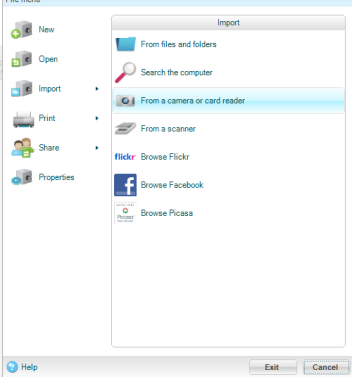
1. Select the File tab.
2. In the resulting pop-up, choose Import > From a camera or card reader.
Note: You may also choose the appropriate button from the Get Media section of the Home ribbon.
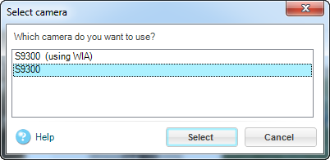
3. If more than one camera drive is detected, the Select Camera dialog box displays. Choose your camera and click Select.
Note: If you are using a WIA camera, you will first see a WIA-import dialog box before continuing with your import.
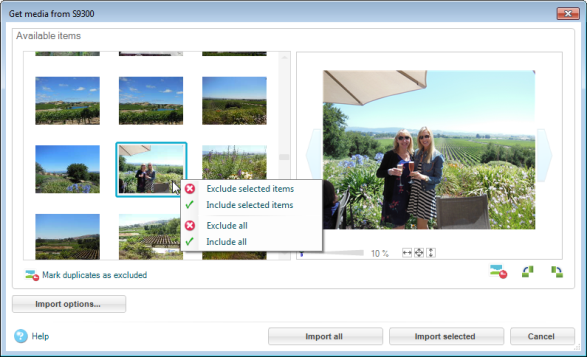
4. The Get Pictures from Camera dialog box displays. Select the photos you want to import. You can select all or use the CTRL key on your keyboard to select individual photos.
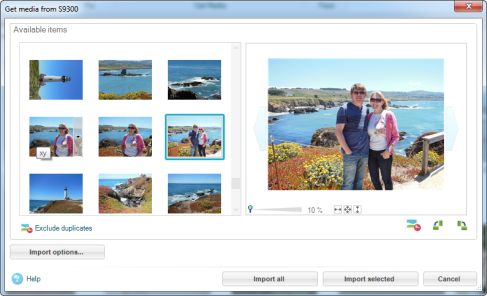
Tip: Select several items in a row by clicking the first item, pressing the SHIFT key on your keyboard, and clicking the last item in the sequence. You can exclude duplicates, exclude the previewed image, and rotate the images using the buttons under the preview.

You can also exclude or include specific items by using the drop-down arrow or right-clicking on each thumbnail.
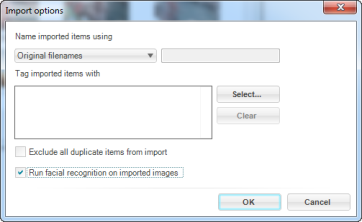
5. Set your importing options in the Import Options dialog box. (If you are working in Windows XP, this dialog box will display after you click OK.)
6. Click the Import All or Import Selected to import your selected images. The files are imported into your Vault.
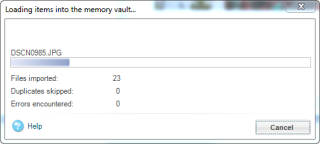
7. The Media Library displays your imported images.
Note: After items have been imported, Historian automatically changes the timeline to the Import date view with today's date selected. This allows you to easily view the items you just imported. You can return to the previous view by clicking the back arrow button in the media library title bar or by clicking on the Home button in the ribbon.
| © 2005-2013 Panstoria, Inc. |
|
 View dialog box.